Quick tour
Cells hold a number, a label (any string not prefixed with =), or a formula (prefixed with =). Arrow keys move; Enter commits and moves down; Tab commits and moves right.
This guide shows the terminal frontend, but the model, formulas, file format, and most commands are the same in the desktop app.
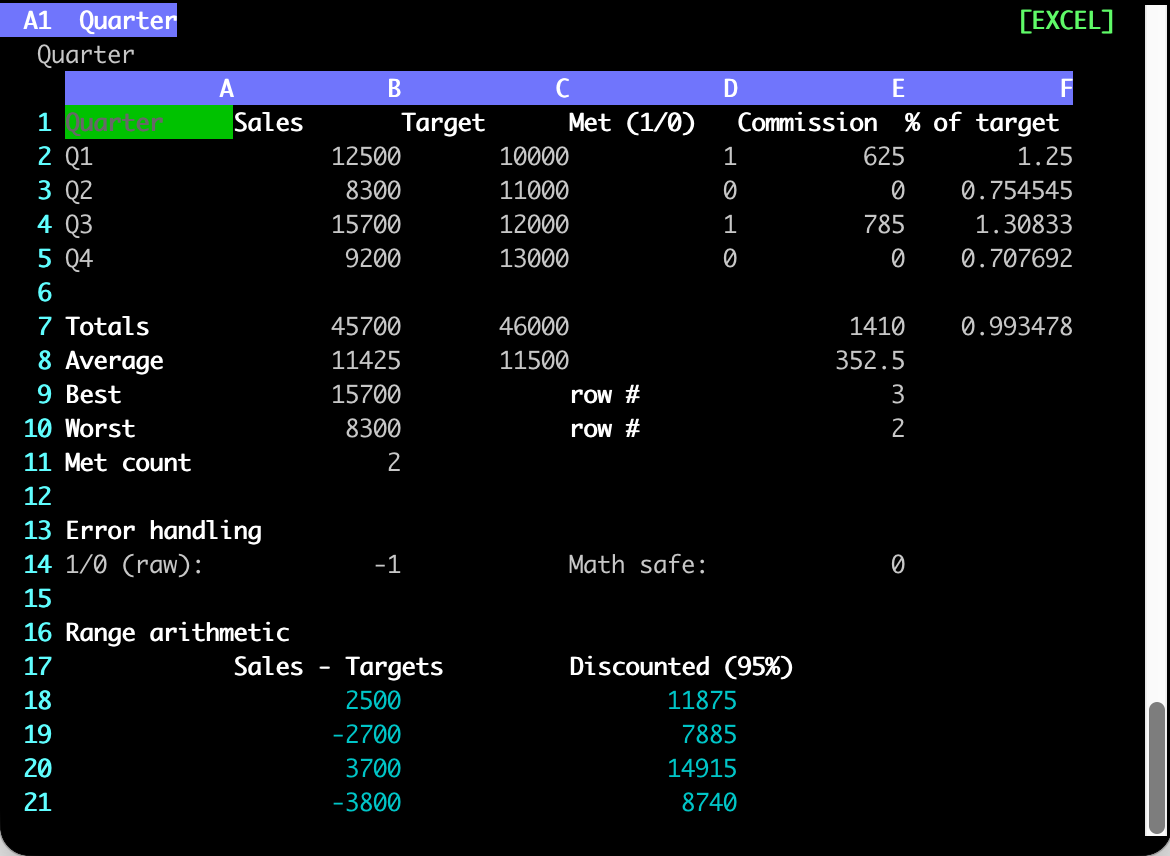
gridcalc example_excel.json, one of the shipped examples. The top line is the formula bar; [EXCEL] on the right is the file's formula mode.
        A          B          C
1  Revenue   Cost       Margin
2  1000      600        =(A2-B2)/A2*100      <- formula
3  1200      700        =(A3-B3)/A3*100
4  Total     =SUM(B2:B3) =AVG(C2:C3)
The command line
Press : for the command line. The basics:
| Command | Purpose |
|---|---|
:w [file] |
save; the extension picks the format (.json, .xlsx, .csv) |
:o file |
open a JSON workbook |
:q, :q! |
quit (asks about unsaved changes), force-quit |
Ctrl-C |
same as :q |
:e |
edit the workbook's Python code block in $EDITOR |
u, Ctrl-R |
undo / redo |
v |
enter visual selection mode (then y yanks, p pastes) |
/text |
search (n/N to cycle matches) |
> |
go to a named cell (e.g. > AA10) |
The full set is in the command reference, and every key is rebindable -- see Configuration.
Where to go next
-
Formula modes -- pick strict Excel, Excel plus Python, or full Python for a workbook.
-
Formulas -- syntax, the function library, named ranges, and the per-workbook code block.
-
Multi-sheet workbooks -- tabs, cross-sheet references, and what the dep graph does with them.
-
Optimization -- define an LP, MIP, or QP in the sheet and solve it.