Layout Managers
py2max provides sophisticated layout managers to automatically position Max objects in patches. This guide covers all available layout managers and their features.
Overview
Layout managers handle the automatic positioning of objects in your patches, eliminating the need to manually specify coordinates for every object. py2max offers several layout strategies:
- Grid Layout - Arranges objects in a grid pattern with optional clustering
- Flow Layout - Intelligent positioning based on signal flow topology
- Legacy Layouts - Horizontal and vertical layouts (maintained for compatibility)
Grid Layout Manager
The GridLayoutManager is the recommended layout system, offering both simple grid arrangement and intelligent clustering of connected objects.
Basic Grid Layout
from py2max import Patcher

# Horizontal grid layout (default)
p = Patcher('grid-horizontal.maxpat', layout="grid", flow_direction="horizontal")

# Add objects - they'll be arranged left-to-right, wrapping when needed
for i in range(12):
    p.add_textbox(f'cycle~ {440 + i * 55}')

p.save()

# Vertical grid layout
p = Patcher('grid-vertical.maxpat', layout="grid", flow_direction="vertical")

# Objects arranged top-to-bottom, wrapping when needed
for i in range(12):
    p.add_textbox(f'cycle~ {440 + i * 55}')

p.save()
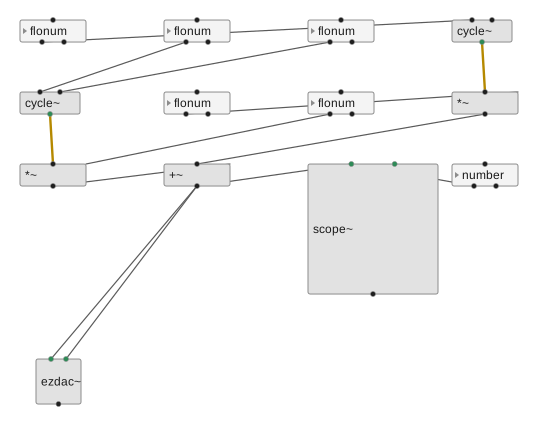
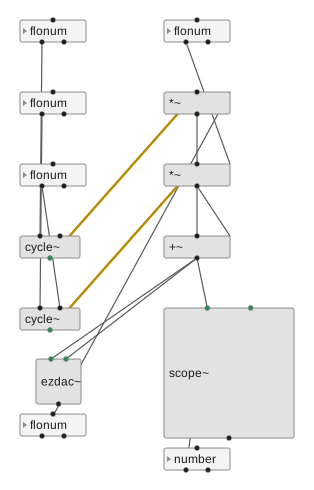
The two grid directions applied to the same two-voice sample patch (generated
by make gallery), for direct comparison:
Horizontal -- objects fill left-to-right, wrapping into rows:
Vertical -- objects fill top-to-bottom, wrapping into columns:
Grid Layout with Clustering
The most powerful feature of GridLayoutManager is connection-aware clustering:
# Enable clustering (default)
p = Patcher('clustered-patch.maxpat', layout="grid", cluster_connected=True)

# Create several signal chains
chains = []
for chain_num in range(3):
    # Create a signal processing chain
    osc = p.add_textbox(f'cycle~ {220 * (chain_num + 1)}')
    filter_obj = p.add_textbox('biquad~')
    delay = p.add_textbox('delay~ 500')
    gain = p.add_textbox('*~ 0.3')

    # Connect the chain
    p.add_line(osc, filter_obj)
    p.add_line(filter_obj, delay)
    p.add_line(delay, gain)

    chains.append([osc, filter_obj, delay, gain])

# Add some control objects
master_vol = p.add_floatbox(0.5, name='master_volume')
output = p.add_textbox('ezdac~')

# Connect all chains to output
for chain in chains:
    p.add_line(chain[-1], output)  # Connect last object in each chain

# Optimize layout - connected objects will be clustered together
p.optimize_layout()
p.save()
Clustering works by:
- Analyzing connections - Identifies groups of connected objects
- Creating clusters - Groups objects that are connected together
- Spatial organization - Positions clusters in separate areas of the patch
- Type-based subdivision - Splits large clusters by object type for clarity
Clustering Configuration
# Enable clustering (default)
p = Patcher('clustered.maxpat', layout="grid", cluster_connected=True)

# Disable clustering for simple grid
p = Patcher('simple-grid.maxpat', layout="grid", cluster_connected=False)

# Different flow directions affect clustering arrangement
p = Patcher('vertical-clusters.maxpat',
           layout="grid",
           flow_direction="vertical",
           cluster_connected=True)
Flow Layout Manager
The FlowLayoutManager provides intelligent positioning based on signal flow topology, perfect for audio and control signal chains.
Signal Flow Analysis
Flow layout analyzes your patchline connections to understand signal flow:
# Horizontal signal flow (left-to-right)
p = Patcher('flow-horizontal.maxpat', layout="flow", flow_direction="horizontal")

# Create a signal processing chain
input_obj = p.add_textbox('adc~')
eq = p.add_textbox('eq~')
compressor = p.add_textbox('compressor~')
delay = p.add_textbox('delay~ 250')
reverb = p.add_textbox('freeverb~')
output = p.add_textbox('dac~')

# Connect in signal flow order
p.add_line(input_obj, eq)
p.add_line(eq, compressor)
p.add_line(compressor, delay)
p.add_line(delay, reverb)
p.add_line(reverb, output)

# Layout will arrange objects in hierarchical levels
p.optimize_layout()
p.save()
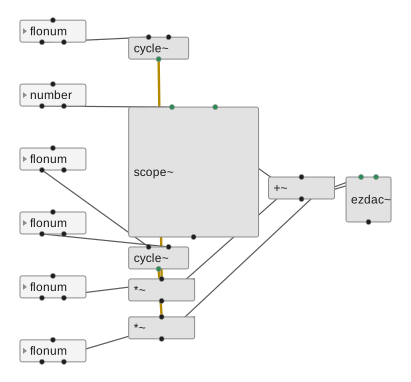
Horizontal flow arranges objects into signal-flow levels, left-to-right:
Vertical Flow Layout
# Vertical signal flow (top-to-bottom)
p = Patcher('flow-vertical.maxpat', layout="flow", flow_direction="vertical")

# Create control flow
metro = p.add_textbox('metro 500')
counter = p.add_textbox('counter 0 7')
select = p.add_textbox('select 0 1 2 3 4 5 6 7')

# Create multiple outputs
outputs = []
for i in range(8):
    outlet = p.add_textbox(f'outlet {i}')
    outputs.append(outlet)

# Connect control flow
p.add_line(metro, counter)
p.add_line(counter, select)

# Connect to all outputs
for i, outlet in enumerate(outputs):
    p.add_line(select, outlet, outlet=i, inlet=0)

# Vertical layout will create clear top-to-bottom hierarchy
p.optimize_layout()
p.save()
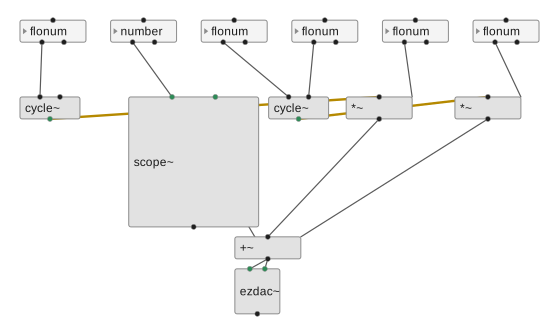
The same patch with vertical flow, top-to-bottom:
Complex Flow Patterns
Flow layout handles complex topologies with multiple signal paths:
p = Patcher('complex-flow.maxpat', layout="flow")

# Multiple sources
source1 = p.add_textbox('cycle~ 220')
source2 = p.add_textbox('cycle~ 330')
source3 = p.add_textbox('noise~')

# Processing layers
mixer1 = p.add_textbox('+~')
mixer2 = p.add_textbox('+~')
main_filter = p.add_textbox('svf~')

# Multiple effects
chorus = p.add_textbox('chorus~')
delay = p.add_textbox('delay~ 375')
reverb = p.add_textbox('freeverb~')

# Final mixing
wet_dry = p.add_textbox('crossfade~')
output = p.add_textbox('ezdac~')

# Complex connection pattern
p.add_line(source1, mixer1)
p.add_line(source2, mixer1)
p.add_line(source3, mixer2)

p.add_line(mixer1, main_filter)
p.add_line(mixer2, main_filter)

p.add_line(main_filter, chorus)
p.add_line(chorus, delay)
p.add_line(delay, reverb)

# Wet/dry mixing
p.add_line(main_filter, wet_dry, outlet=0, inlet=0)  # dry
p.add_line(reverb, wet_dry, outlet=0, inlet=1)       # wet
p.add_line(wet_dry, output)

p.optimize_layout()
p.save()
Legacy Layout Managers
For backward compatibility, py2max maintains the original layout managers:
Horizontal Layout
# Legacy horizontal layout (equivalent to grid + horizontal)
p = Patcher('legacy-horizontal.maxpat', layout="horizontal")

for i in range(10):
    p.add_textbox(f'object{i}')

p.save()
Vertical Layout
# Legacy vertical layout (equivalent to grid + vertical)
p = Patcher('legacy-vertical.maxpat', layout="vertical")

for i in range(10):
    p.add_textbox(f'object{i}')

p.save()
Layout Manager Comparison
| Feature | Grid Layout | Flow Layout | Horizontal Legacy | Vertical Legacy |
|---|---|---|---|---|
| Direction | H + V | H + V | H only | V only |
| Clustering | Yes | No | No | No |
| Flow Analysis | No | Yes | No | No |
| Simple Grid | Yes | No | Yes | Yes |
| Optimization | Yes | Yes | Limited | Limited |
| Best For | General use | Signal chains | Simple layouts | Simple layouts |
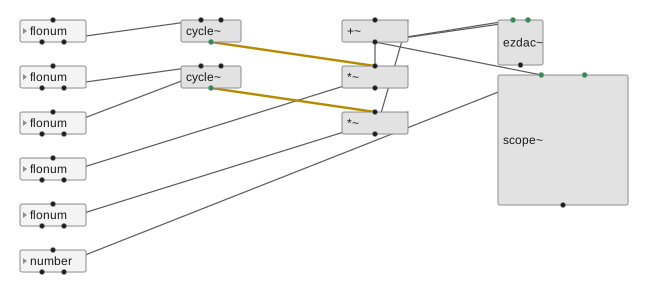
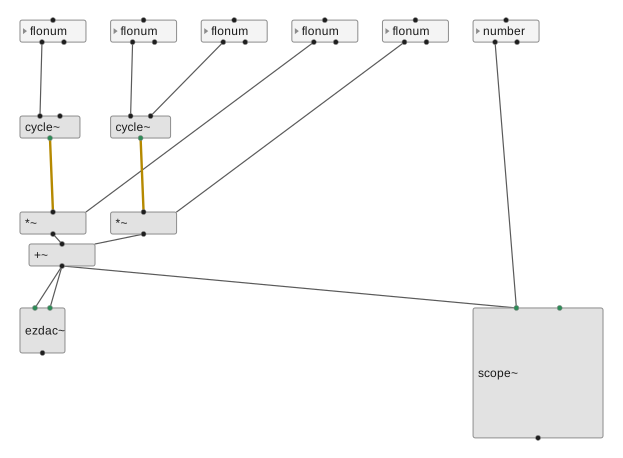
Functional managers
Two further managers organize objects by function. Both use the same sample patch as the grid/flow images above:
Columnar -- objects sorted into functional columns (controls, generators, processors, outputs):
Matrix -- signal chains as columns, functional categories as rows:
Advanced Layout Techniques
Custom Positioning
You can override automatic layout for specific objects:
from py2max.core.common import Rect

p = Patcher('custom-positions.maxpat', layout="grid")

# Most objects use automatic layout
auto_obj1 = p.add_textbox('cycle~ 440')
auto_obj2 = p.add_textbox('gain~')

# Override position for specific object
custom_obj = p.add_textbox('ezdac~', patching_rect=Rect(500, 100, 66, 22))

# Automatic objects continue with layout
auto_obj3 = p.add_textbox('scope~')

p.optimize_layout()  # Affects only auto-positioned objects
p.save()
Layout Parameters
Customize layout manager behavior:
# Access layout manager for customization
p = Patcher('custom-layout.maxpat', layout="grid")

# Modify layout parameters
p._layout_mgr.pad = 80.0           # Increase spacing between objects
p._layout_mgr.box_width = 100.0    # Wider default box width
p._layout_mgr.box_height = 30.0    # Taller default box height

# Add objects with custom spacing
for i in range(6):
    p.add_textbox(f'object{i}')

p.save()
Mixed Layout Strategies
Combine different layout approaches in the same patch:
p = Patcher('mixed-layout.maxpat', layout="grid")

# Create manually positioned control section
control_rect = Rect(50, 50, 200, 300)
controls = []
for i in range(5):
    ctrl = p.add_floatbox(i * 0.1,
                        name=f'control{i}',
                        patching_rect=Rect(control_rect.x,
                                          control_rect.y + i * 40,
                                          60, 22))
    controls.append(ctrl)

# Let remaining objects use automatic layout
processors = []
for i in range(8):
    proc = p.add_textbox(f'biquad~ {100 + i * 200} 0.707')
    processors.append(proc)

# Connect controls to processors
for i, (ctrl, proc) in enumerate(zip(controls, processors)):
    p.add_line(ctrl, proc)

# Only auto-positioned objects affected by optimization
p.optimize_layout()
p.save()
Best Practices
Choosing the Right Layout
- Grid Layout: Best for general use, UI-heavy patches, or mixed content
- Flow Layout: Ideal for signal processing chains and audio effects
- Clustering: Enable for patches with distinct functional groups
- Manual Positioning: Use sparingly for special cases or fine-tuning
Performance Considerations
- Large patches: Grid clustering and flow analysis can be slow with 100+ objects
- Optimize timing: Call optimize_layout() after adding all objects and connections
- Disable clustering: For simple patches where speed is critical
Layout Workflow
- Choose layout type based on patch structure
- Add all objects first
- Create all connections
- Call optimize_layout() once at the end
- Fine-tune manually if needed
# Recommended workflow
p = Patcher('patch.maxpat', layout="grid", cluster_connected=True)

# 1. Add all objects
objects = []
for i in range(20):
    obj = p.add_textbox(f'object{i}')
    objects.append(obj)

# 2. Create all connections
for i in range(len(objects) - 1):
    if i % 3 == 0:  # Create some connection pattern
        p.add_line(objects[i], objects[i + 1])

# 3. Optimize once at the end
p.optimize_layout()

# 4. Manual adjustments if needed
# special_obj.patching_rect = Rect(x, y, w, h)

p.save()
This approach ensures the best performance and most coherent layout results.
Param Docking
Value-setting UI objects -- number boxes, toggle, slider, dial, message,
live.* -- usually belong with the object they control rather than as nodes in
the signal flow. Enable param_placement=True to dock them next to their target:
p = Patcher('synth.maxpat', layout='flow', param_placement=True)
freq = p.add_floatbox()
phase = p.add_floatbox()
osc = p.add_textbox('cycle~ 440')
dac = p.add_textbox('ezdac~')
p.add_line(freq, osc, inlet=0)    # frequency
p.add_line(phase, osc, inlet=1)   # phase
p.add_line(osc, dac)
p.optimize_layout()               # freq/phase are docked above cycle~
During optimize_layout(), any param whose outgoing connections all go to a
single non-param object is moved adjacent to that object, perpendicular to the
signal flow -- above the target in a horizontal flow, to its left in a vertical
flow (and to the right or below when the flow hugs that edge) -- ordered by the
inlet it drives (a lone param is aligned directly to its inlet). Overlaps are
then resolved automatically. This works with every built-in layout (grid, flow,
columnar, matrix).
A control that fans out to more than one object is treated as a shared control and left in the flow. The feature is off by default.